LMS setup guide
Add Talio to your Moodle course
Talio connects to Moodle as an LTI 1.3 external tool. You add a speaking scenario to a course the way you add any activity, students practice in Talio, and the result comes back to your Moodle gradebook.
Talio gives you the setup values
Step 1 needs four web addresses from Talio: the tool URL, the login URL, the redirect URI and the public keyset URL. We send them when we set up your site, and in step 2 you send us two IDs so we can register your Moodle. To start, contact us.
Step 1
Add Talio as a tool
You need a Moodle site administrator for this step. Go to Site administration → Plugins → Activity modules → External tool → Manage tools, then choose configure a tool manually.
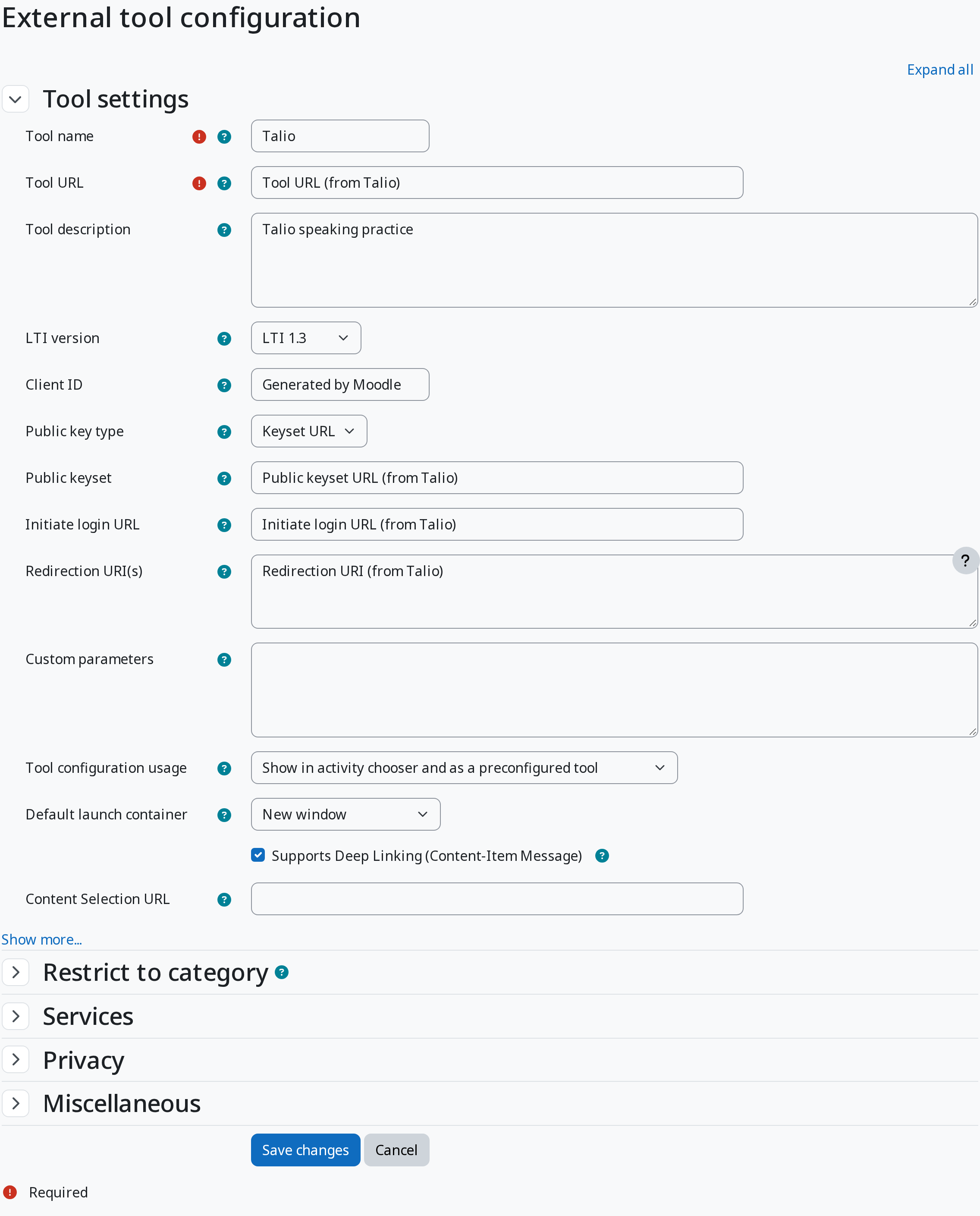
Name the tool Talio, paste the four addresses from Talio into Tool URL, Public keyset, Initiate login URL and Redirection URI(s), and set the rest as below. Moodle generates the Client ID itself when you save.
| Moodle field | Set it to |
|---|---|
| LTI version | LTI 1.3 |
| Public key type | Keyset URL |
| Default launch container | New window |
| Supports Deep Linking (Content-Item Message) | Checked |
| IMS LTI Assignment and Grade Services | Use this service for grade sync and column management |
| Accept grades from the tool | As specified in Deep Linking definition or Delegate to teacher |
Keep the launch container on New window. When Moodle embeds Talio in a frame, the browser can block the microphone inside it. If a course is already set to embed and the microphone is blocked, Talio offers an Open in a new tab button.
Step 2
Send Talio your Client ID and Deployment ID
Still in Manage tools, choose View configuration details on the Talio tool. Send us the Platform ID, Client ID and Deployment ID. We register your Moodle with those, and we tell you when it is ready. Wait for that before you add an assignment in step 3.
Step 3
Add a speaking assignment to a course
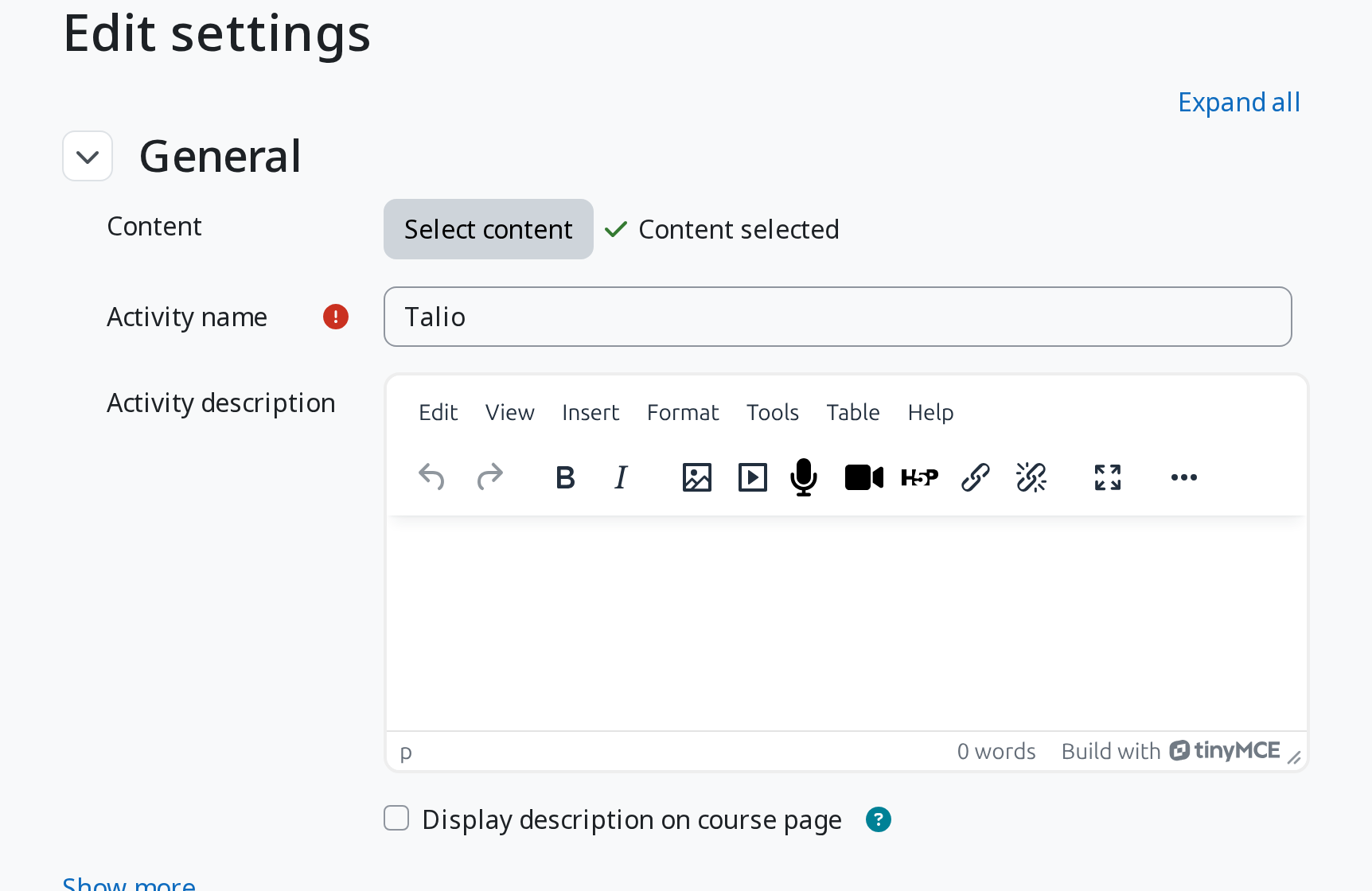
In the course, turn on editing and add an activity. Talio is in the activity chooser, under the name you gave the tool. On the settings page, choose Select content.
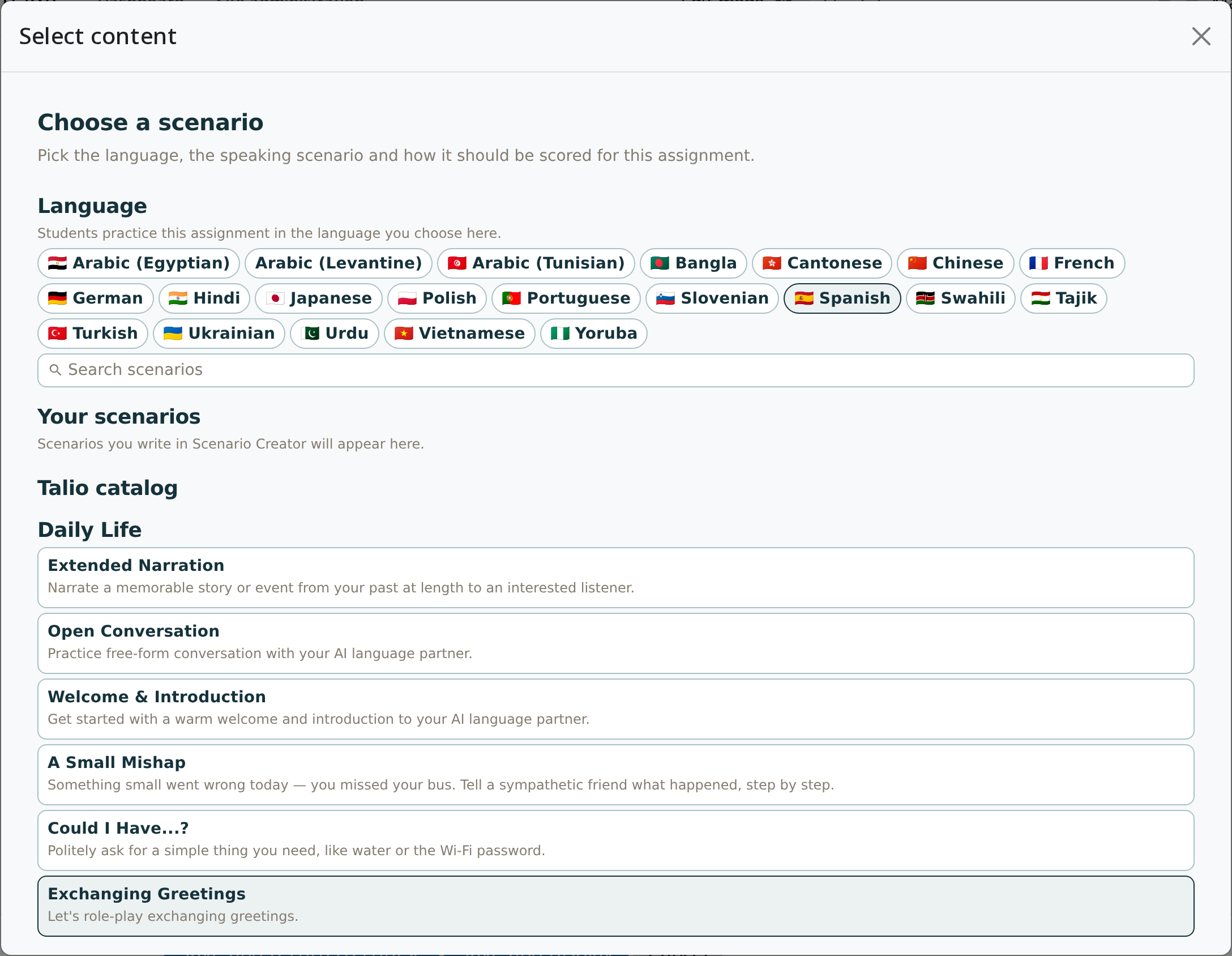
Talio's picker opens. Choose the language students will practice in, then a scenario from the Talio catalog. Every student who opens the assignment practices in the language you choose here.
Step 4
Choose how credit is given
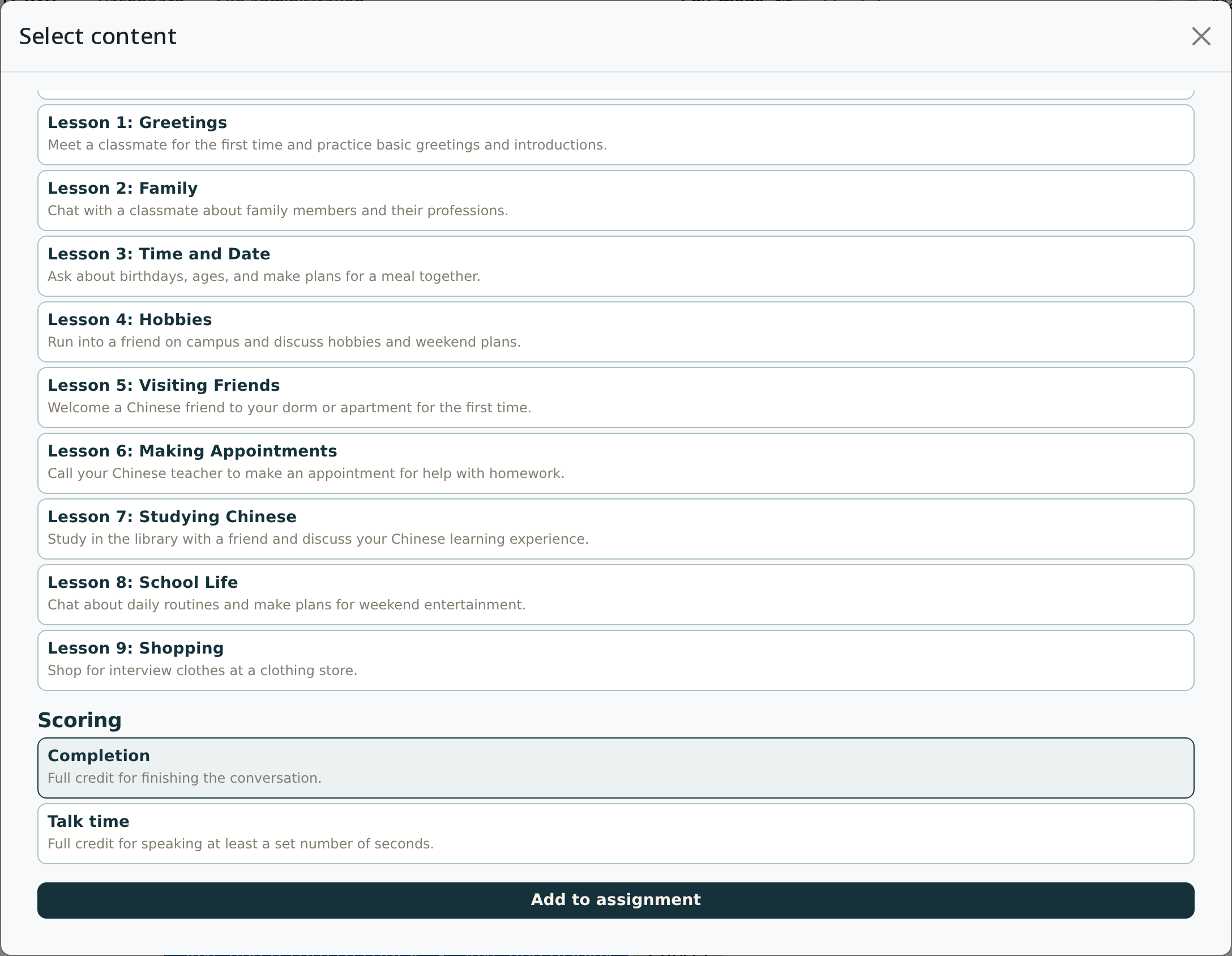
At the bottom of the picker, pick how credit is given, then choose Add to assignment.
- Completion. Full credit for finishing the conversation.
- Talk time. Full credit for speaking at least a set number of seconds.
Back on the Moodle page the content shows as selected. Save the activity. Talio appears in the course like any other.
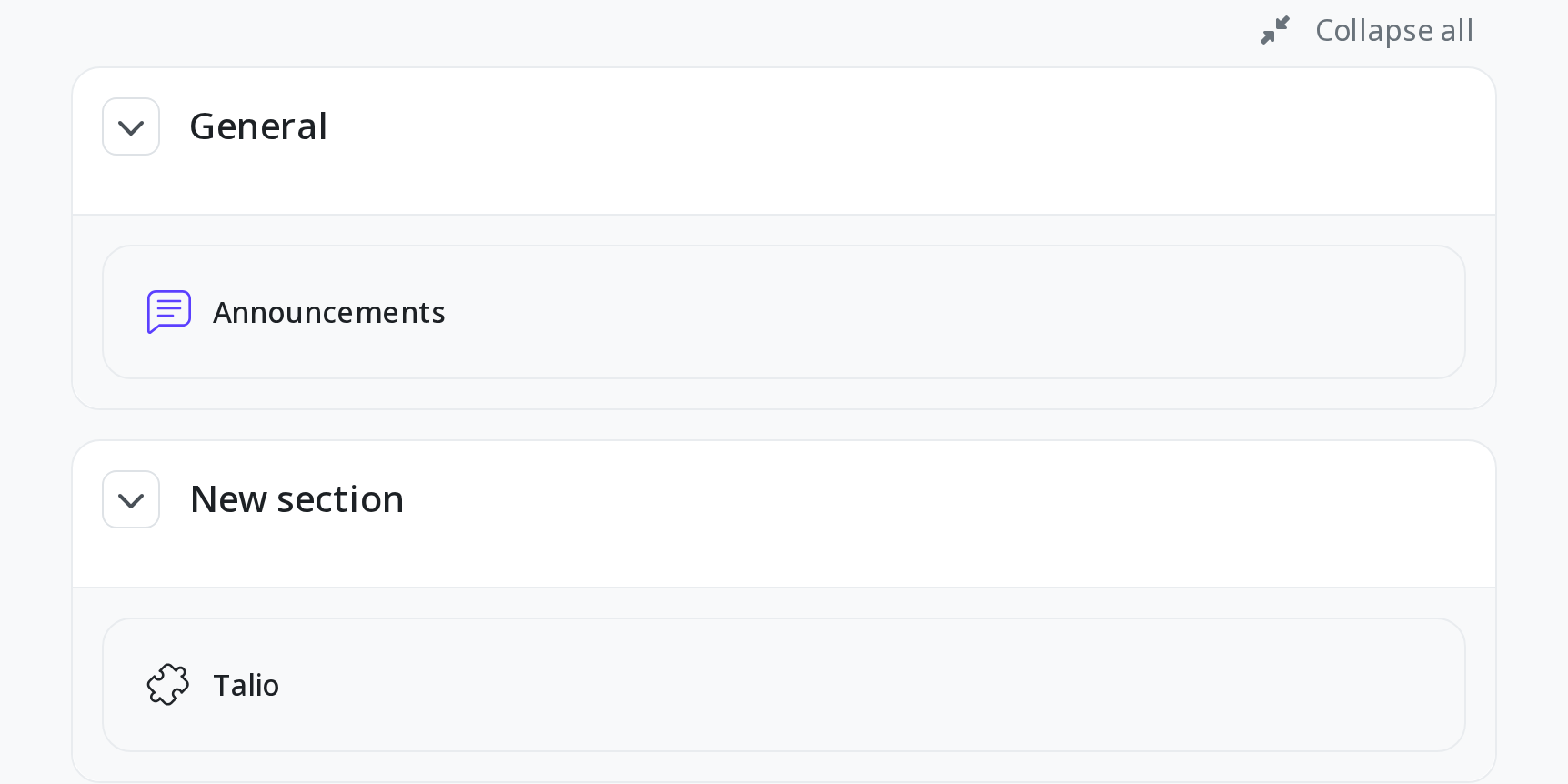
Step 5
What students do, and where the grade lands
Students open the activity from the course. Talio opens in a new window, signed in through Moodle, and starts the scenario you chose. They allow the microphone, talk, and end the conversation. Talio sends the result back to Moodle, and it appears in the gradebook.
Send your students the student guide for what they see, step by step.
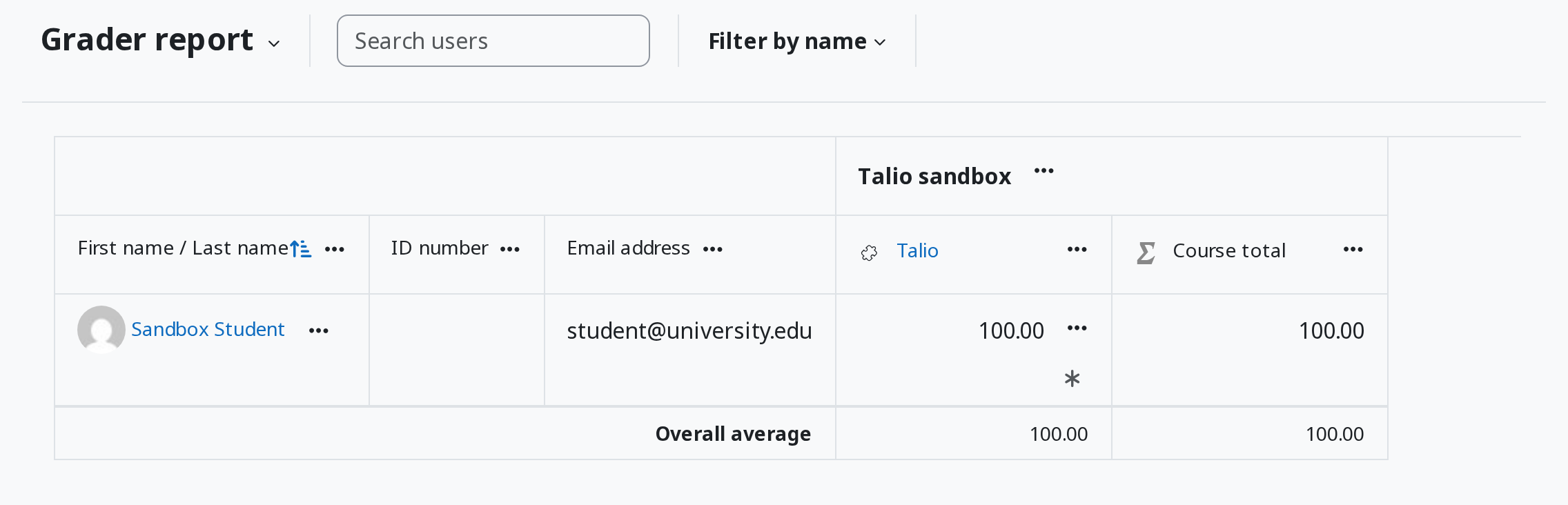
The first time a student launches Talio, they are asked to review and accept the Privacy Policy and End User License Agreement. If the course is linked to a Talio class, they also acknowledge what their teacher will be able to see of their practice.
Other learning management systems
This guide covers Moodle. If you use Canvas, Brightspace, Blackboard or another LMS that supports LTI 1.3, tell us which and we will walk you through the same steps.