Student guide
Using Talio in your Moodle course
Your instructor added a Talio activity to your course. You open it from Moodle, have a short spoken conversation in the language you're learning, and your result goes back to Moodle. You need a microphone.
Step 1
Open the activity
In your course, click the Talio activity. Talio opens in a new window, already signed in through Moodle.
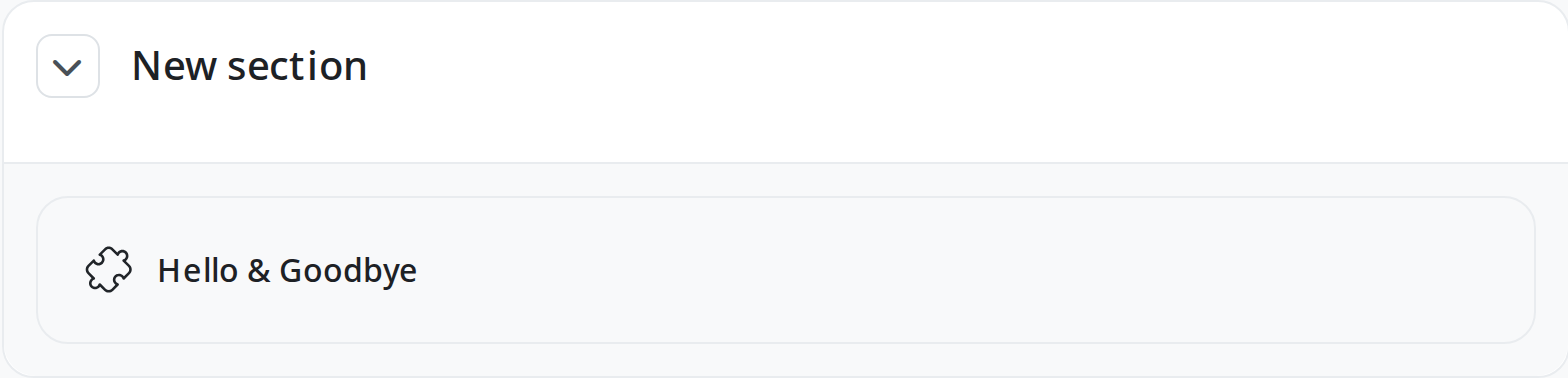
If no window appears, choose Open in new window on the Moodle page.

Step 2
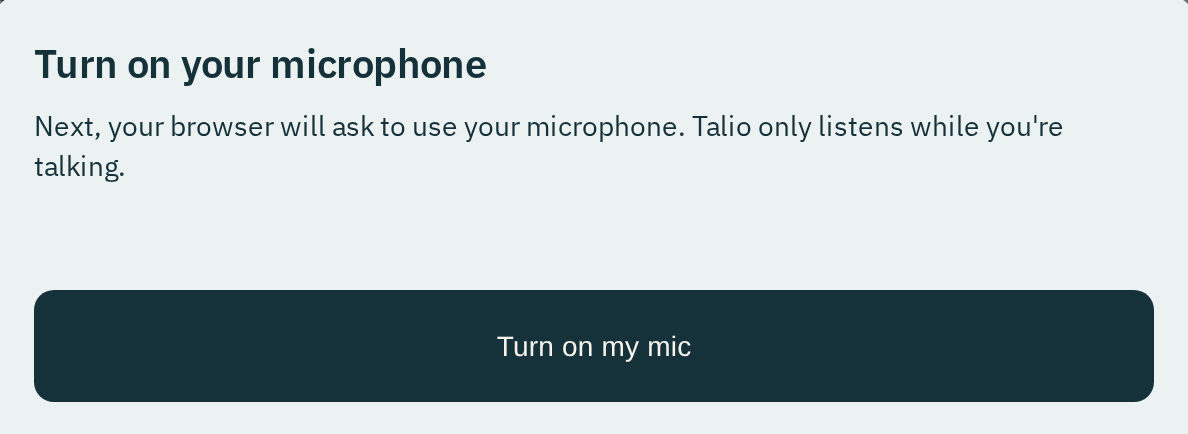
Turn on your microphone
The first time, Talio asks before your browser does. Choose Turn on my mic, then allow the microphone when your browser asks.
Step 3
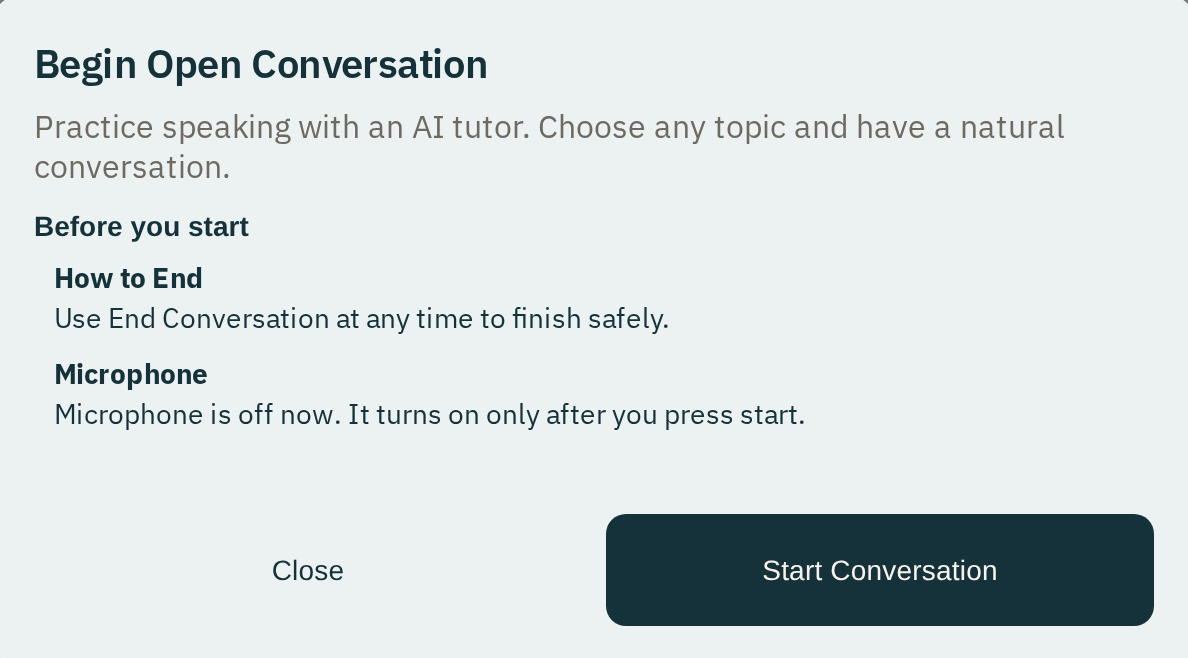
Have the conversation
Before the conversation starts, a card tells you how to end it and that the microphone stays off until you start. Choose Start Conversation and talk. It's a normal back and forth, so just speak when it's your turn.
Step 4
Finish, then find your grade
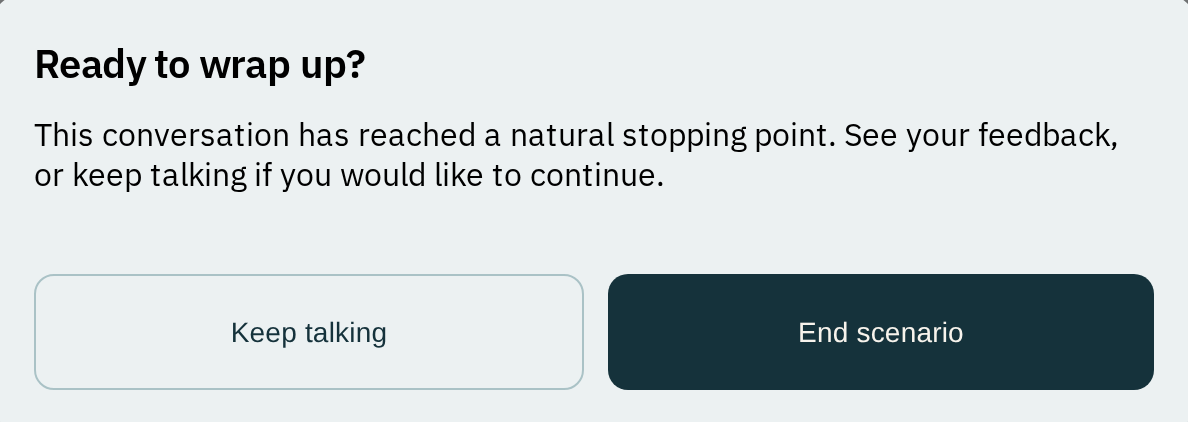
Choose End Conversation when you're done. If the conversation reaches a natural stopping point first, Talio shows Ready to wrap up? Choose End scenario to finish, or Keep talking.
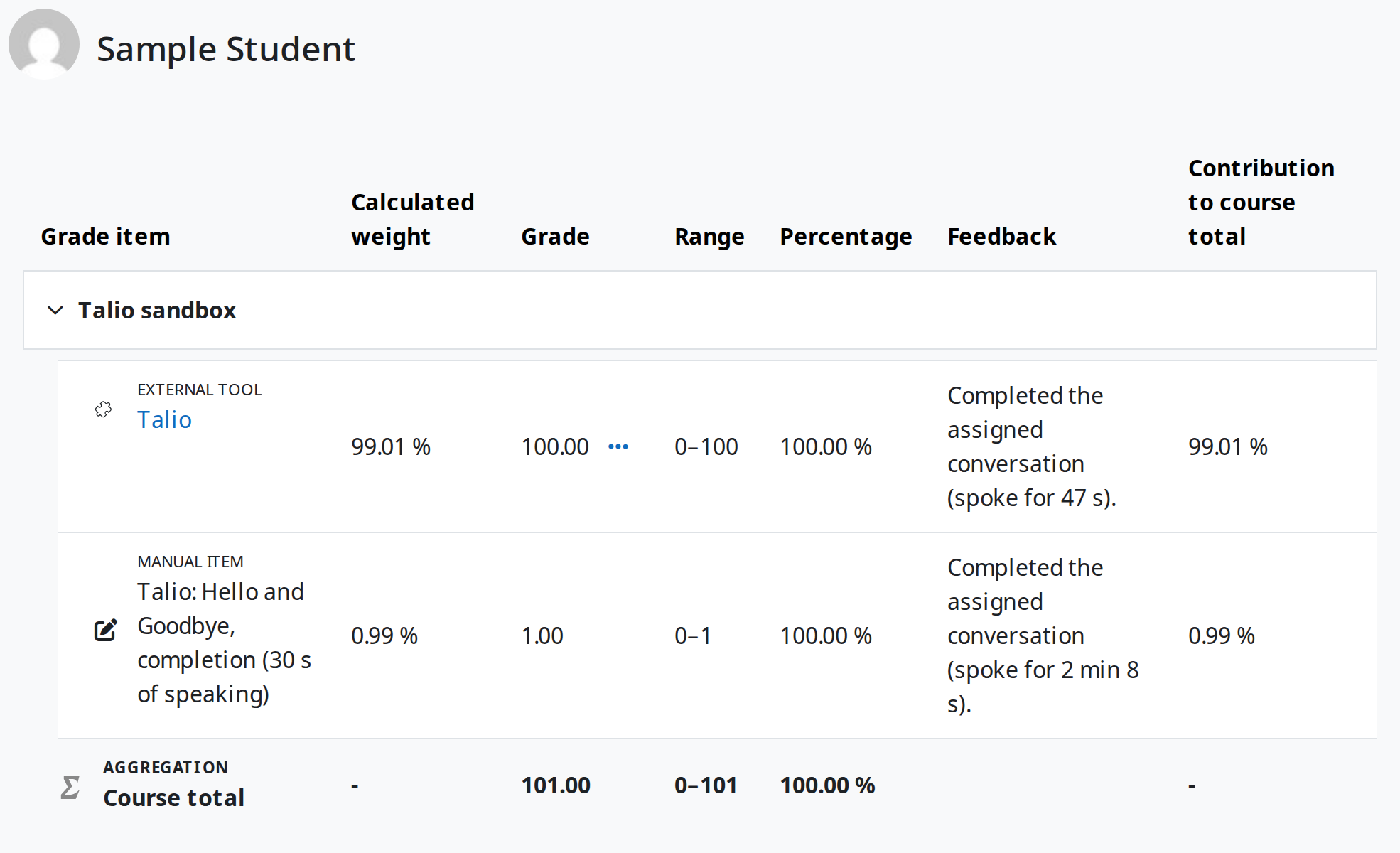
Talio then takes you back to its home page. Your result goes back to Moodle. To see it, open Grades in your course.
If something doesn't work
Nothing opened. Your browser probably blocked the pop-up. Choose Open in new window on the Moodle page, or allow pop-ups for your Moodle site.
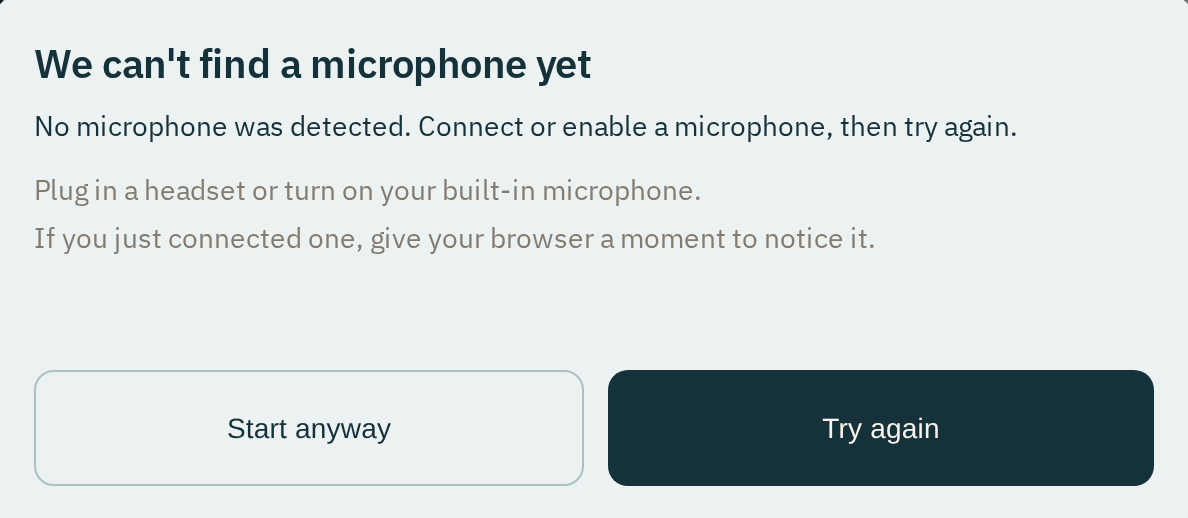
Talio shows a microphone problem. Connect a microphone and let your browser use it, then choose Try again. Don't choose Start anyway unless your microphone works. Without it, Talio can't hear you.
Questions about your grade. Ask your instructor.